ShareablesShareables
No Microsoft account required

ExcelExcel Website Widgets

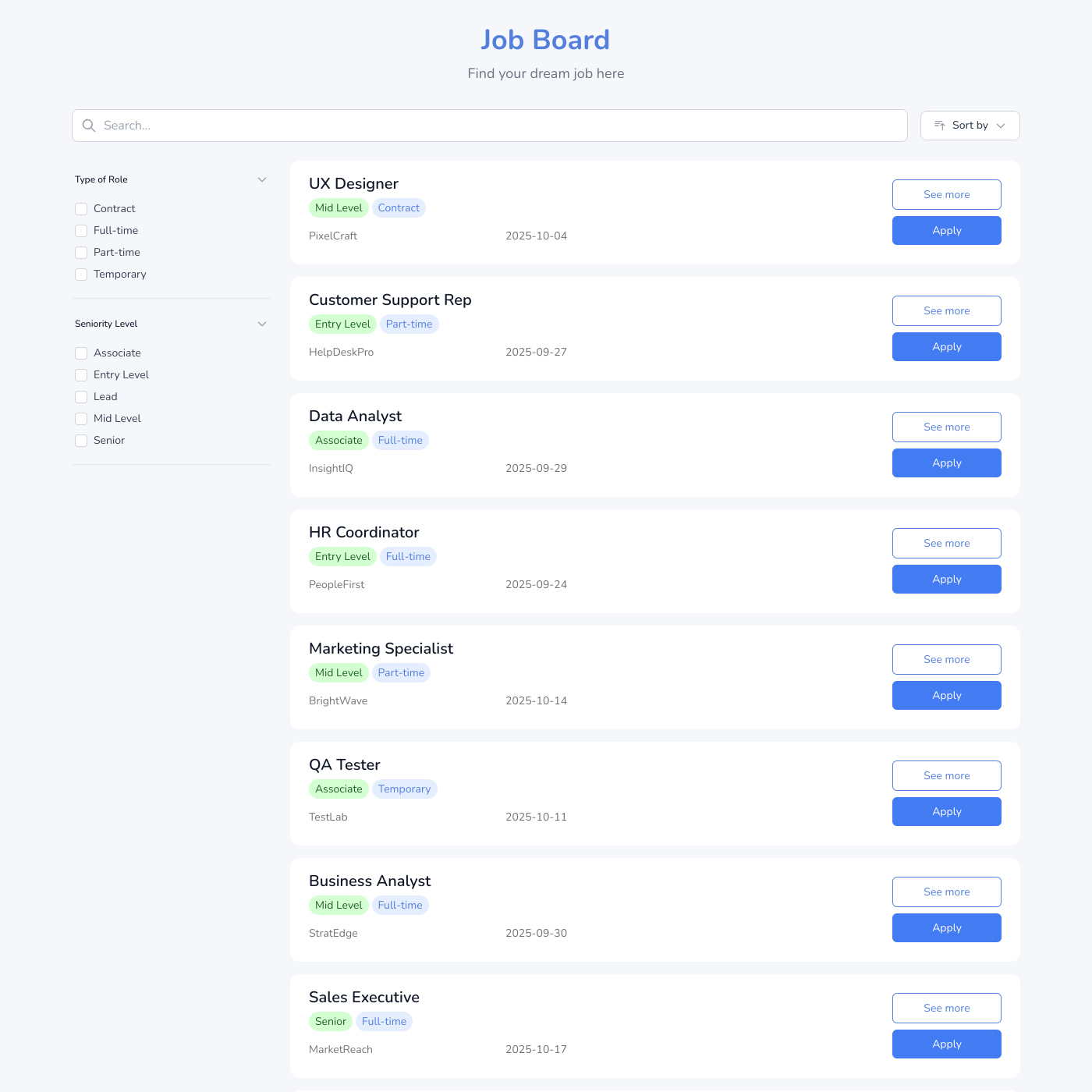
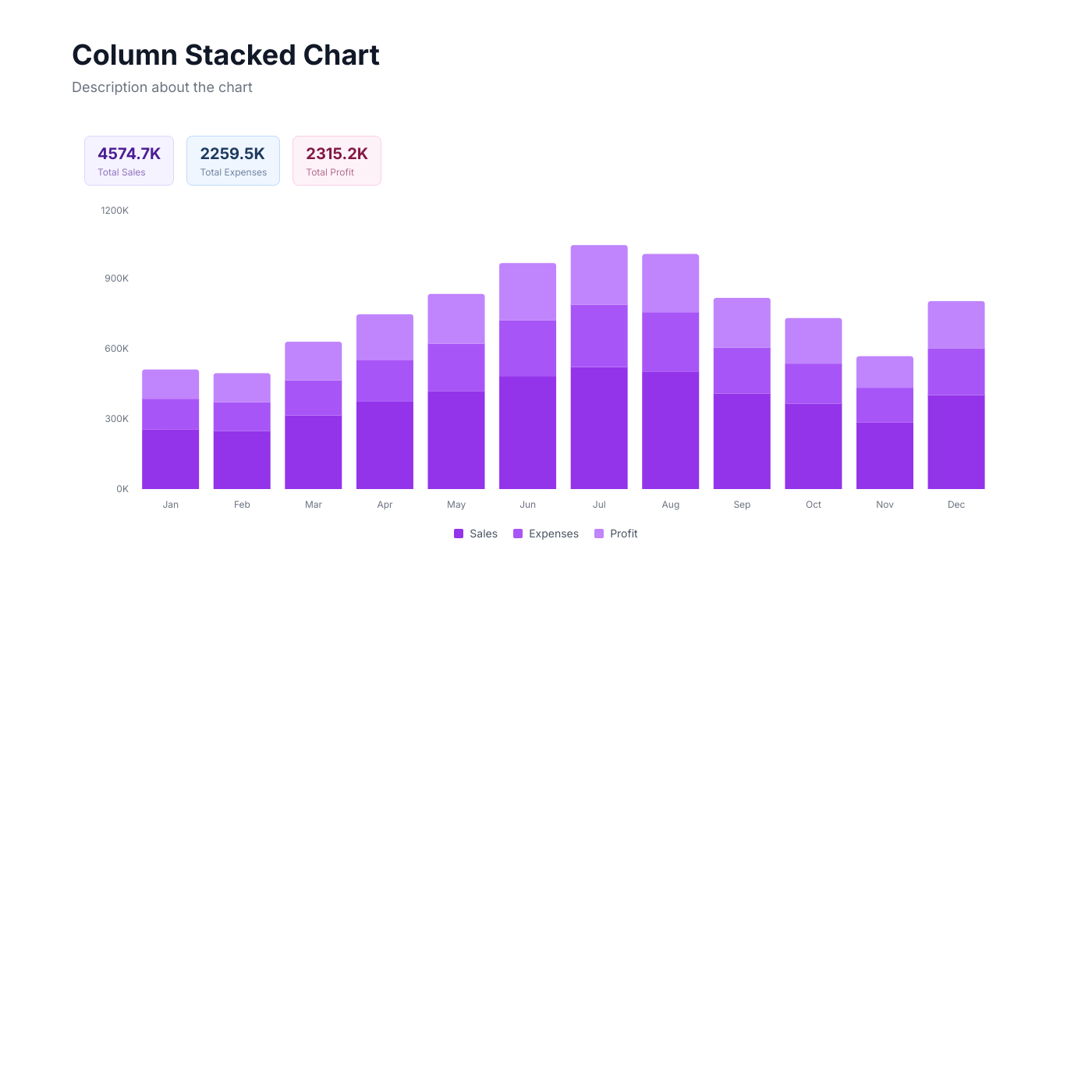
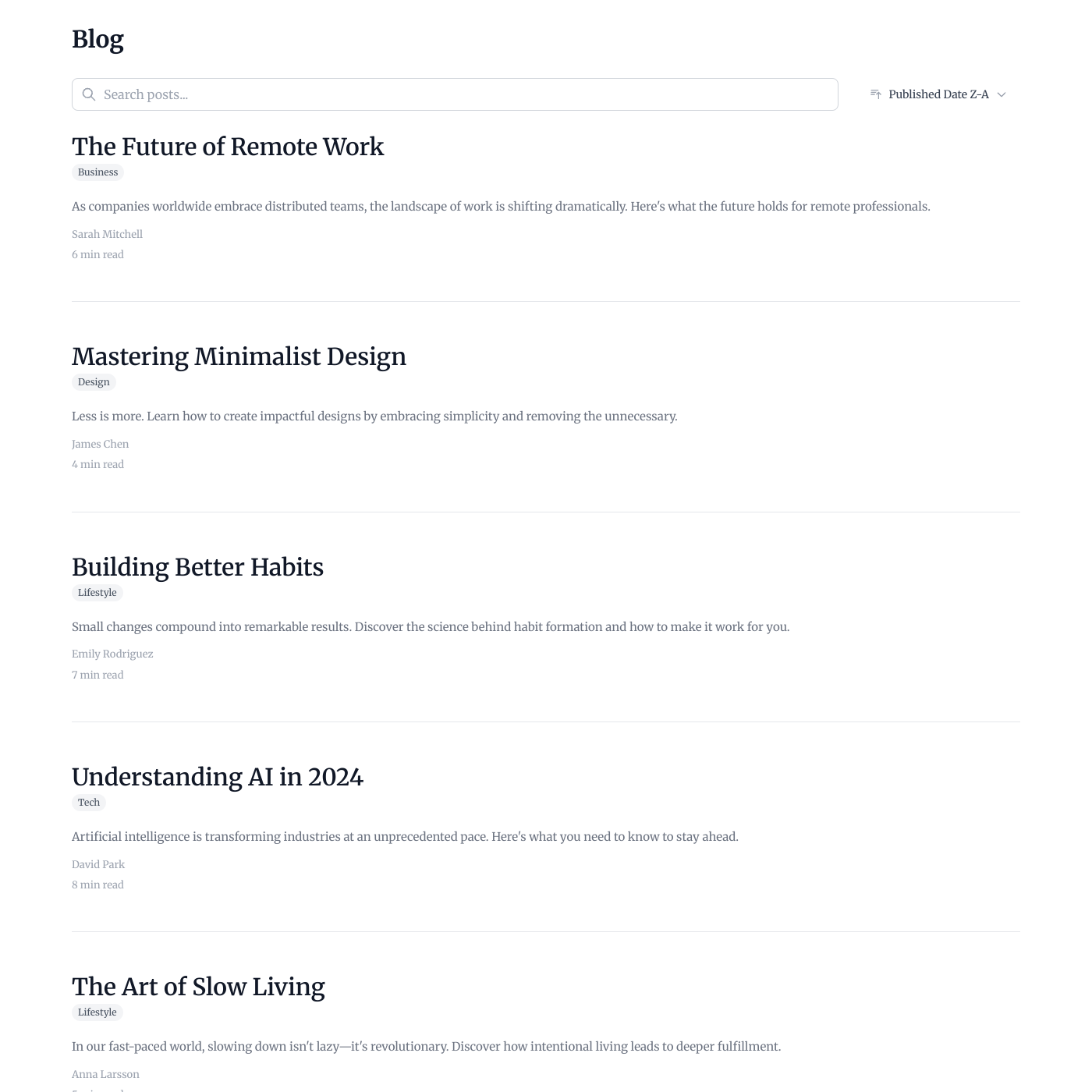
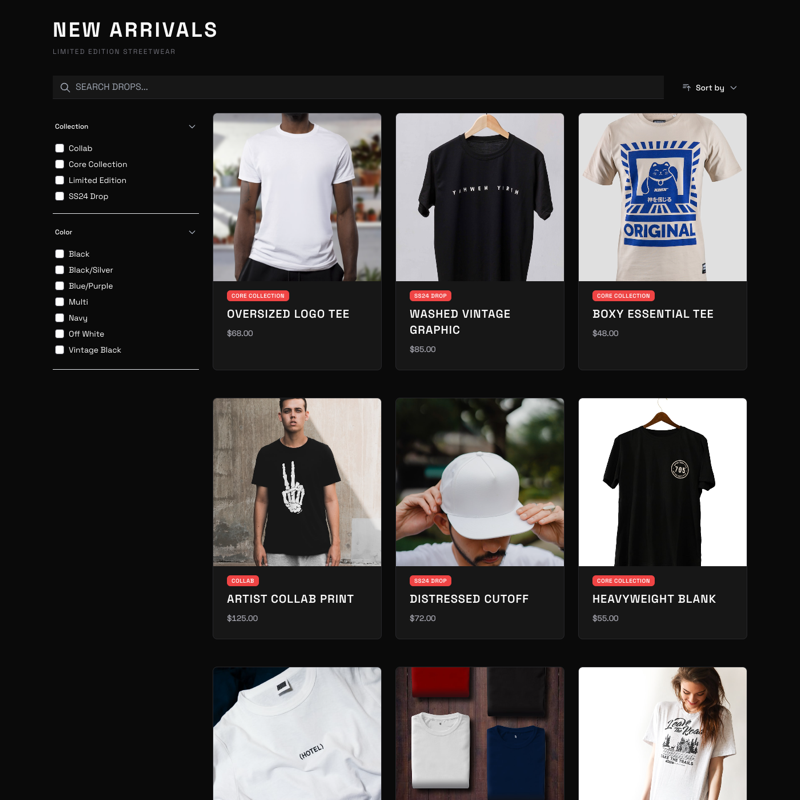
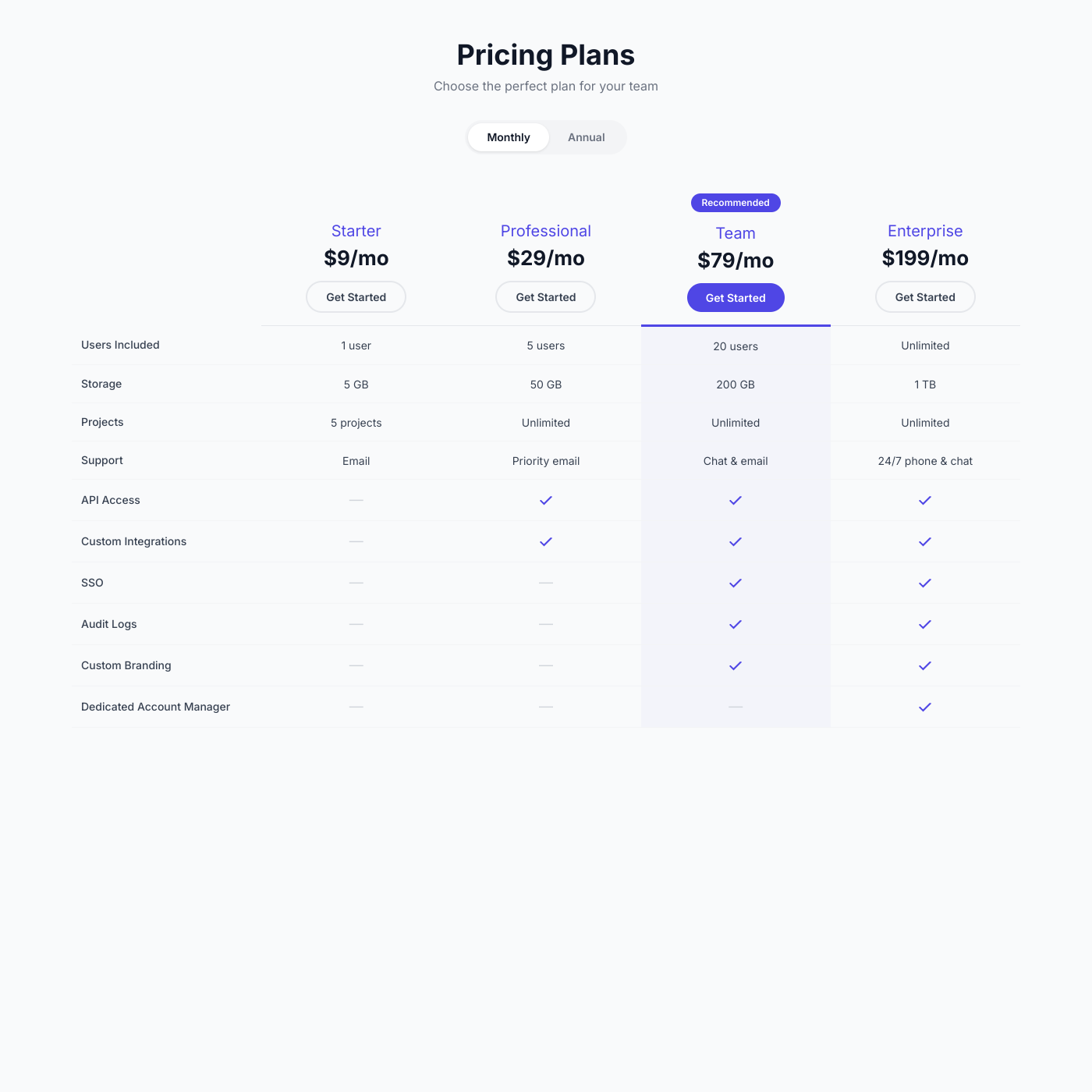
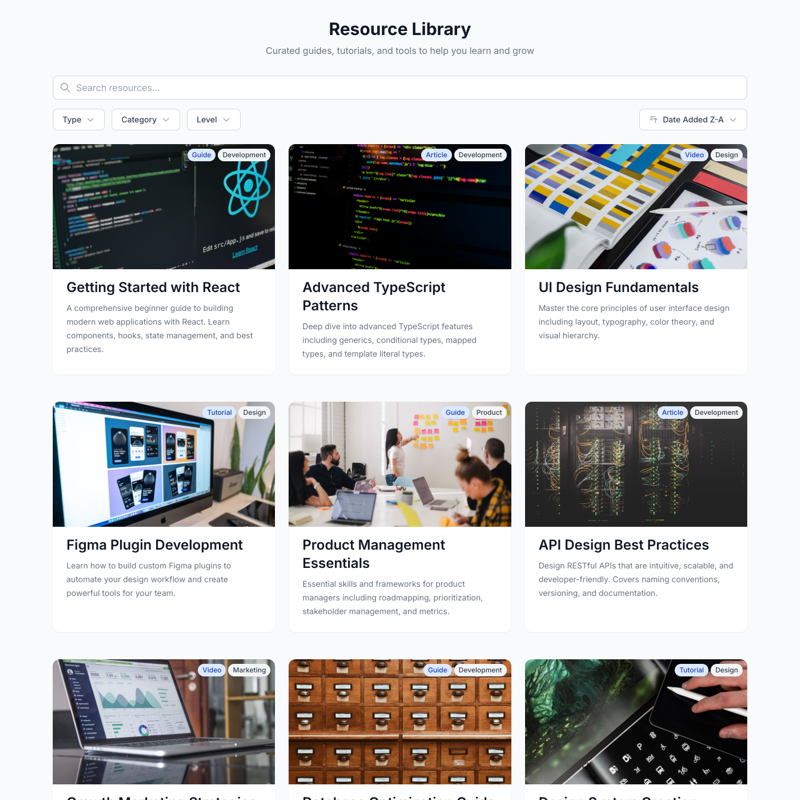
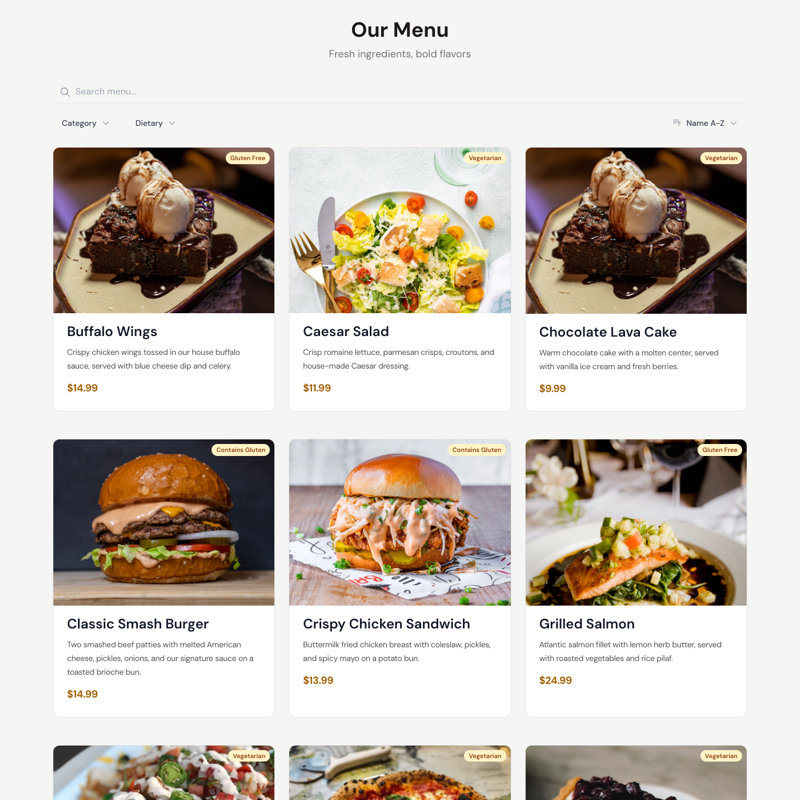
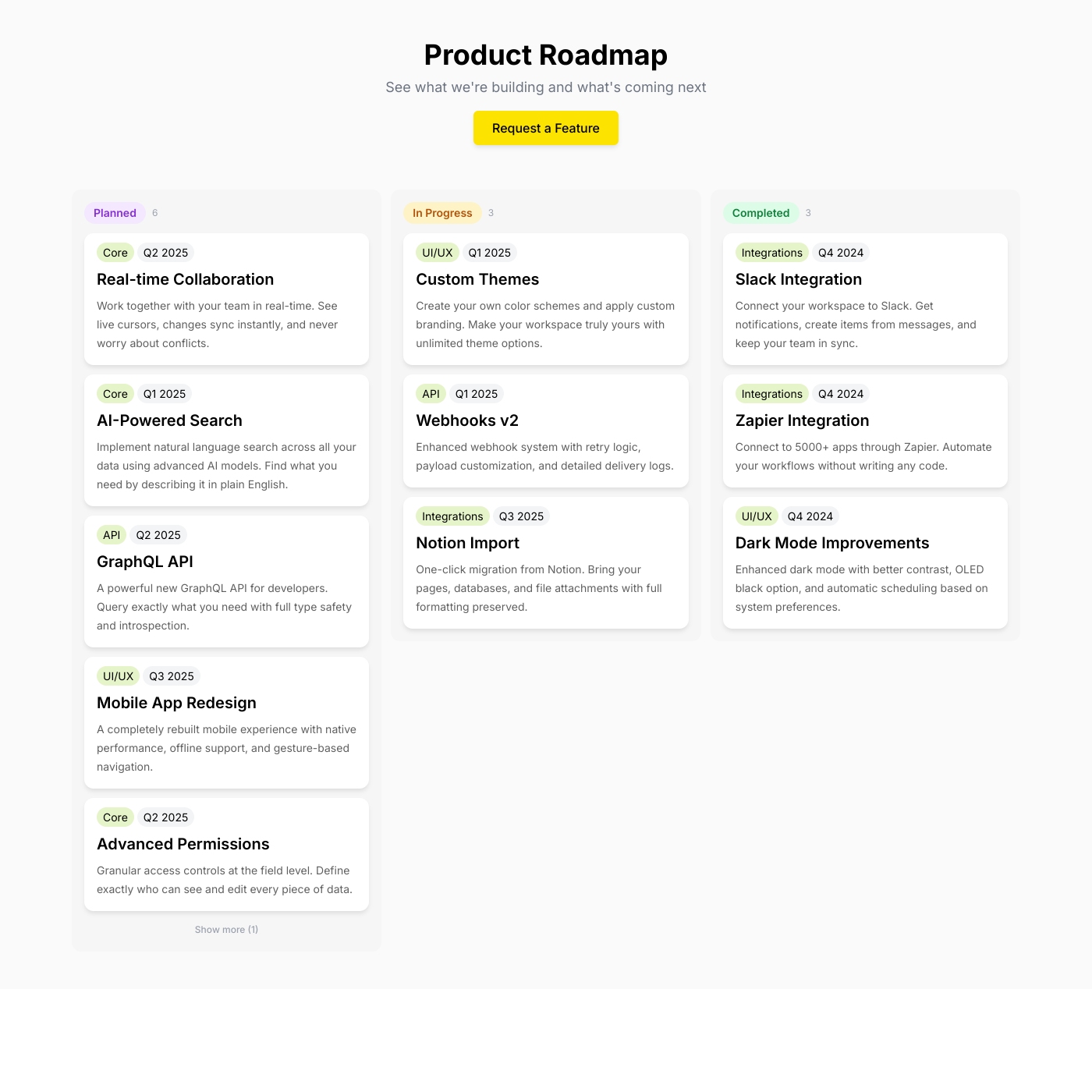
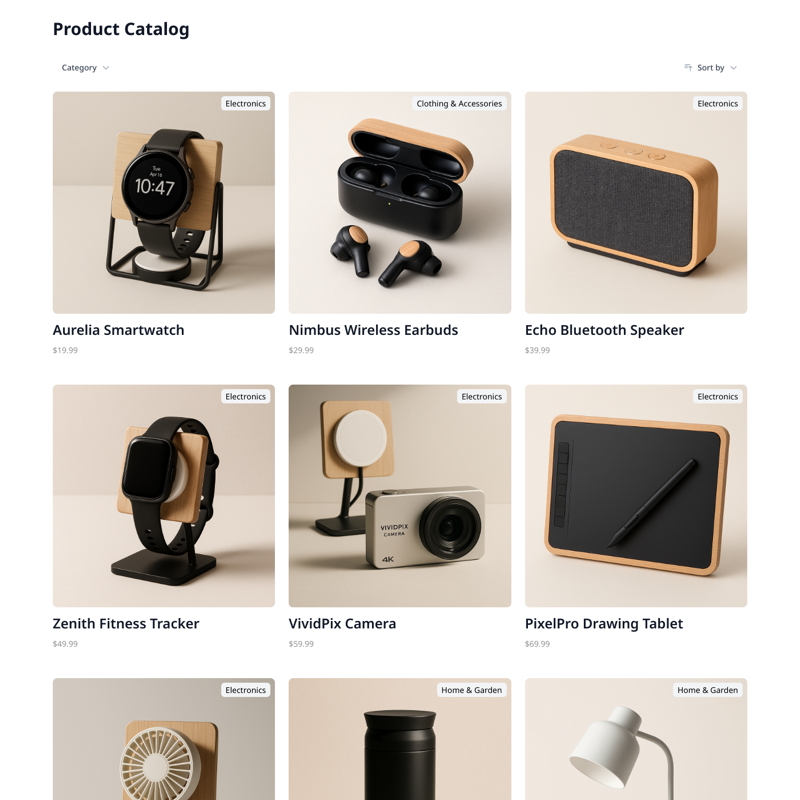
Upload any .xlsx file or connect your Microsoft account. Display spreadsheet data as beautiful embedded widgets — no coding required.

Two ways to connect Excel

Upload a .xlsx file directly — no account needed — or connect your Microsoft 365 account for live OneDrive sync. Choose the option that works best for you.

Upload Any .xlsx File

Drag and drop any .xlsx file to get started instantly. No Microsoft account, no sign-in, no API keys. Works on all plans including free.

Connect Microsoft Account

Sign in with your Microsoft 365 account to connect OneDrive workbooks. Changes sync to your website automatically.

Multiple Worksheet Support

Your workbook has multiple worksheets? No problem. Pick the one you want to display, whether uploaded or connected via OneDrive.

Automatic Column Detection

We read your worksheet headers and detect your data automatically. Map columns to your widget fields in seconds.

Re-upload to Update

Using file upload? Simply re-upload your .xlsx file anytime to update your widget with the latest data.

No Account Required

The upload option works without any Microsoft account. Perfect for freelancers, small teams, or anyone who just wants to get data on their site fast.

Excel FAQ

Excel is the world's most widely used spreadsheet: • Familiar Interface — Billions of people already know how to use Excel. No learning curve for your team. • Powerful Formulas — Use Excel's formulas, pivot tables, and data tools to prepare your data before it reaches your website. • Two Connection Options — Upload any .xlsx file directly, or connect your Microsoft account for live OneDrive sync. • No Account Required — The upload option works without any Microsoft account at all.

You have two options: 1. Upload .xlsx File — Drag and drop any .xlsx file directly. No Microsoft account needed. Your data is ready instantly. 2. Connect Microsoft Account — Sign in with your Microsoft 365 account to browse and connect OneDrive workbooks for automatic sync. Both options take under a minute to set up.

No! You can upload any .xlsx file directly without any Microsoft account. If you prefer live sync with OneDrive, you'll need a Microsoft account with OneDrive access, but the upload option is completely account-free.

Yes! Just use the "Upload .xlsx File" option to drag and drop any local .xlsx file directly. No need to upload to OneDrive first. When your data changes, simply re-upload the file to update your widget.

Your widget fetches data from your workbook each time a visitor loads your page. Any changes you make in Excel are reflected on your website automatically — no manual publish step needed.

We support all common Excel data types including text, numbers, dates, currency, percentages, URLs, and more. Data is read directly from your worksheet cells.

Each widget connects to one worksheet within a workbook. Whether you upload a file or connect via OneDrive, you can pick which worksheet to use. Create multiple widgets from different worksheets in the same workbook.

If you used the upload option, simply re-upload your updated .xlsx file at any time from the widget editor. Your widget updates immediately with the new data. If you connected via Microsoft 365, changes sync automatically from OneDrive.

Yes. For Microsoft 365 connections, we use Microsoft's official OAuth authentication — we never see your password. For file uploads, your data is processed securely and we only store the fields needed to render your widget.

Yes! Start Fresh creates a new Excel workbook on your OneDrive pre-filled with sample data from your chosen template. Just connect your Microsoft account, pick a template, and start customizing.

Your spreadsheet is your CMS

Upload a .xlsx file or connect your Microsoft account, pick a layout, and embed it anywhere. No credit card required.